
I regularly receive questions about printing collage sheets and other images. Many people are frustrated because they can’t achieve the results I do when using their own printers.
I have a high-quality Epson printer made for printing photos and images, but I didn’t always, and I still printed quality images.
USING THE RIGHT PAPER - It Makes a Big Difference
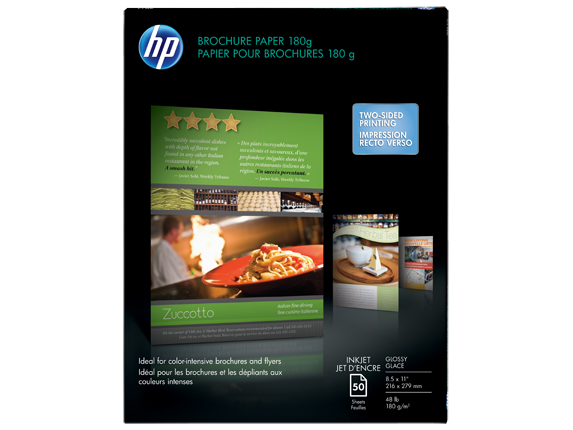
The problem might be the paper you use. I use what is called "Presentation," "Brochure," or "Flyer" paper. It is made so that the ink sits on the top and doesn't soak in as much. It usually comes in a matte and a glossy version. Most of the time, I use the matte version, but occasionally I'll use the glossy depending on the image and look I'm trying to achieve. Never print on cardstock or general printer paper, as all the ink soaks in, and you lose the brightness of the colors.
Some printer brands have their own versions of this paper. For example, I have an Epson printer, and they make their own, as does HP. If your brand of printer carries its own paper, I suggest you use it because it is formulated to work with their printers. I also suggest that if your printer brand does not make its own brand, you use paper made by Epson or HP (if it is within your budget) because the quality is better than a generic brand. There are versions of this paper made for both inkjet and laser printers, so make sure you buy the type made for your printer type. If you have an inkjet printer, don't buy paper made for a laser printer and vice versa.
You can usually find this type of paper in office supply stores, big box stores like Walmart, and online.

MAINTAINING PRINTER HEADS
If you are using an inkjet printer (which I’m guessing most people are, as laser printers are expensive), make sure your printer heads are clean and aligned. By clean, I mean unclogged. If they are not clean, the colors will be incorrect or missing. If you don’t use your printer frequently, your printer heads may clog. Over time and with usage, the heads can move and require realignment. You may notice this problem if you see lines in your images.
You should have a utility in your printer dialog box to check that the heads are clean and aligned. Regularly checking this requires very little ink and will save you in the long run as you won't be printing images, only to find out there is a problem with your printer heads and that the images are useless.
A dialog box will pop up when you select the option to print a document, image, etc. Depending on your computer/operating system (for example, PC or Mac) and your printer, your dialog box will look different. Below is a picture of my Epson printer dialog box. Yours will look different but should have similar options.
One of the tabs on my dialog box is labeled “Utilities,” and that is where I can perform printer head checks and maintenance. Your option might be the same, or it might be under something labeled “Advanced..”.

One of the tabs on my dialog box is labeled “Utilities,” and that is where I can perform printer head checks and maintenance. Your option might be the same as might, or it might be under something labeled “Advanced..”.
Always select the option to check the heads before opting to run the cleaning function, as the function will waste ink (it’s unavoidable), and there is no need to do this if your heads are clean.

CLEANING THE HEADS
By selecting “Nozzle Check,” the printer will print a pattern on paper (just use junk paper) that I can use to determine if the heads are clean (see image below). A pattern is printed for each of the ink cartridges. If there are gaps in the pattern, then there is clogging. If the pattern is missing, then the head is completely clogged.
To clean the heads, I select “Head Cleaning.” The printer will then flush the heads with ink to clean out the clog. Don’t do this procedure unless the “Nozzle Check” indicated that you have clogs, as there is no reason to waste ink. When the process is finished, run the “Nozzle Check” again. You will need to repeat the “Head Cleaning” step if there are still clogs. Depending on the clog or clogs' severity, you may have to repeat the process multiple times.

LOW INK & DRY CARTRIDGES
Low ink can also be a problem. Some printers will not allow you to print once the level gets too low, but some will just give you a warning and still allow you to print, so you could end up with poor images because your ink cartridge or cartridges are too low or empty. If you don't use the printer regularly and print using all of the colors, your cartridges could dry up and need to be replaced, and I can guarantee they will clog. This can become expensive.
If you are thinking about purchasing an ink-jet printer, cartridge issues should be a consideration. Over time, the cost of ink cartridges dwarfs the cost of even high-cost printers. I print images almost every day, so I rarely have clogging problems or dry cartridge problems, but that might not be the case with the amount of printing you would be doing.
WHAT TO LOOK FOR IN A PRINTER
In terms of selecting a printer, the higher the DPI (dots per inch) results in a better quality printed image. Printers that are designed to print photos will also give you a better-quality print. They frequently have a higher DPI and use more color cartridges, which are formulated to work well on photo and brochure paper. For example, my Photo Epson printer has 4 different black matte cartridges (light light black, light black, matte black, photo black), both light and dark blues and reds, and a yellow for a total of 9 cartridges. Photo printer cartridges are usually more expensive.
General color inkjet printers can work well, too (that is what I used to have) and can cost as little as $40.00 up to $1500.00. Inkjet photo printers can run anywhere from around $200 to as much as $2000.00. More money does not necessarily translate into a better printer. Be sure to read reviews first before deciding and note what kind of printing the reviewer is doing.
Remember to consider the cartridges' cost, as I discussed earlier, as that will be your biggest expense.
It all comes down to your budget and the frequency you print in deciding which printer to purchase.
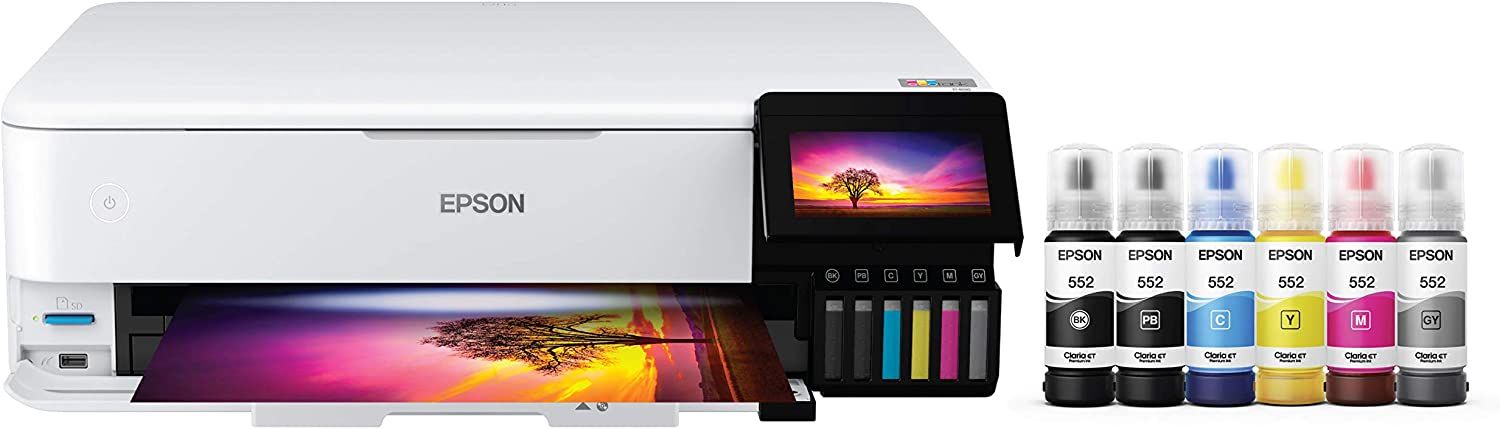
I replaced my old Epson printer with the Epson EcoTank Photo ET-8550 Wireless Wide-Format Color All-in-One Supertank Printer with Scanner, Copier, Ethernet and 4.3-inch Color Touchscreen.
Stay tuned for new "How To" videos addressing other frequently asked questions, such as:
- How to crop and print individual images from a PDF collage sheet.
- How to print images from a Digital Image Set, which is a set of separate images as opposed to a collage sheet; this is the most cost-effective way of purchasing images.

No comments:
Post a Comment